How WhatYouWrote works
Choose the questions.
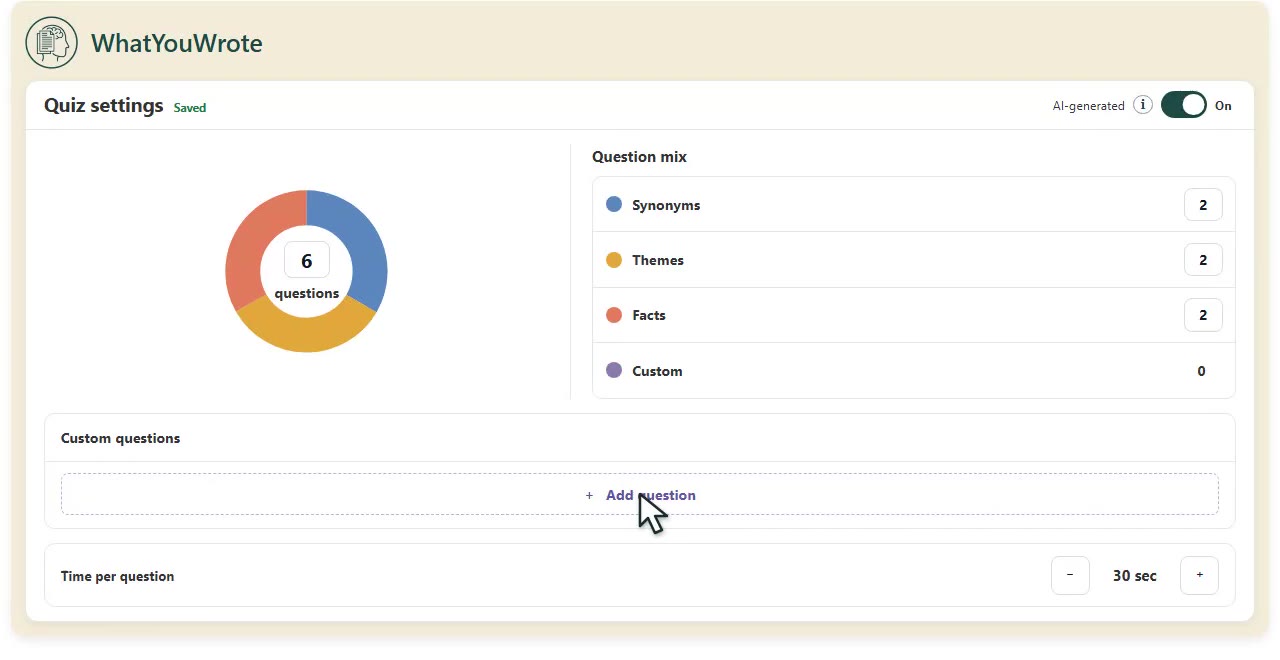
Open WhatYouWrote from your LMS. Choose 5–30 questions, adjust the mix of Synonyms, Facts, and Themes, and set the time per question. Add your own questions to check a particular idea.
Each student's attempt keeps the settings in place when they submit. Later edits do not change an attempt already underway.
Students submit and take the quiz.
Students upload a PDF, Word document, or text file inside the assignment. Google Docs import is also available when configured.
Once the quiz is ready, the student chooses Start Quiz. Each question asks about their submission. Refreshing does not restart the timer.
Try a question →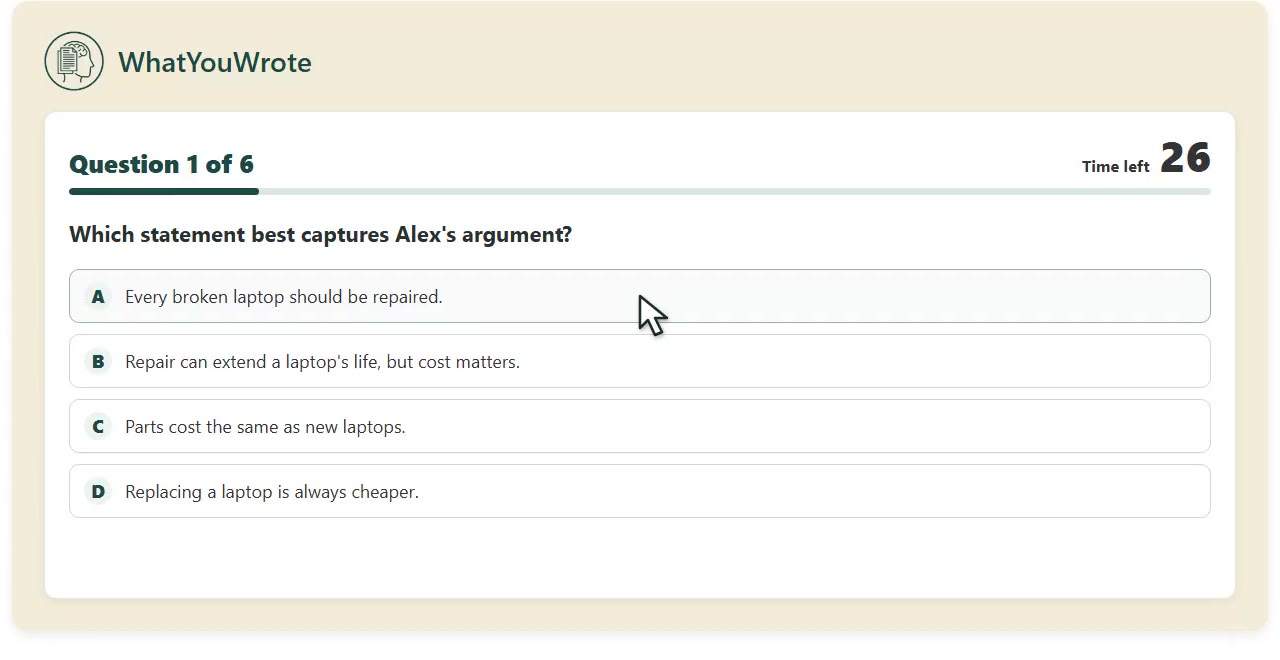
Review the responses.
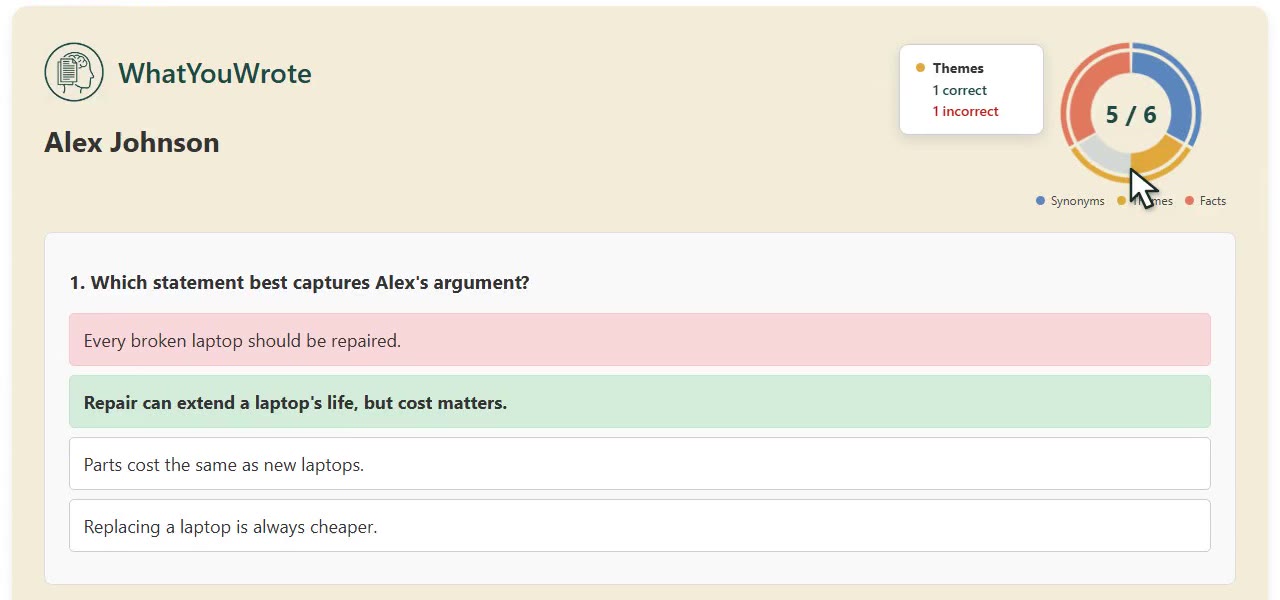
The class dashboard brings submissions and scores together. Open a student's quiz to see each question, their answer, and the correct choice.
In this fictional example, Alex recognized the words and facts but missed a question about repair and cost. That gives the instructor a specific place to begin a follow-up.
A comprehension score informs your judgment; it does not prove authorship.